
Your iPhone holds years of memories, from birthdays and vacations to everyday moments you cannot recreate. Yet most people do not think about backup until storage fills up or something goes wrong. That raises an important question: what is the best way to store photos from iPhone so they stay safe for years?
The simple answer is to combine cloud backup with an offline copy. This protects you from device loss, sync errors, and subscription issues. In this guide, you will learn the most reliable ways to store and protect your iPhone photos based on security, cost, and long-term reliability. Keep reading to build a safer photo storage plan.
Why Storing iPhone Photos the Right Way Matters More Than You Think?
Your iPhone is not a permanent storage device, it’s a daily-use gadget that can be lost, damaged, replaced, or reset at any time. Yet many people treat it as their primary photo archive.
Just because your photos are visible in the Photos app doesn’t mean they’re safely backed up.
Here’s what can realistically go wrong:
- Phone theft or accidental damage
- Failed iOS updates or system crashes
- iCloud sync deleting photos across all devices
- Running out of storage and deleting photos impulsively
- Subscription lapses causing upload interruptions
Modern iPhones capture high-resolution images and 4K videos that quickly consume storage space. When you see the “iPhone Storage Almost Full” alert, it often leads to rushed decisions and accidental data loss.
Photos are often irreplaceable. Family milestones, travel memories, personal documents, and creative work, once deleted without a proper backup system, recovery is uncertain.
Another common misunderstanding involves syncing. If iCloud Photos is enabled and you delete an image from your iPhone, it also deletes from iCloud and every connected device. Many users assume the cloud keeps a permanent copy, but syncing is not the same as independent backup.
Proper storage isn’t just about freeing up space. It’s about:
- Long-term preservation
- Multi-device accessibility
- Data redundancy
- Privacy and security
- Ownership control
Relying on a single storage method, whether cloud or local, increases risk. A smart strategy requires more than one layer of protection. And that brings us to the most common solution people rely on, iCloud.
What Is the Best Way to Store Photos From iPhone?
If you want a direct answer, the best way to store photos from your iPhone is to use a hybrid approach, automatic cloud backup for convenience and a physical offline copy for long-term security.
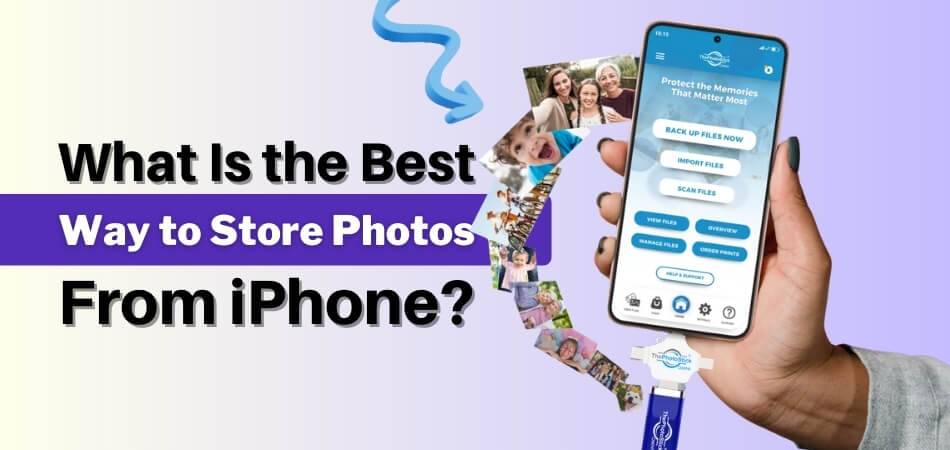
Relying on only one storage method increases risk. Cloud storage protects your photos if your phone is lost or damaged, while an offline backup protects you from subscription changes, sync mistakes, account lockouts, or accidental deletions.
Here’s a quick breakdown of the most reliable options:
- iCloud Photos: Automatic syncing across Apple devices
- Third-party cloud storage: Google Photos, OneDrive, Dropbox
- External hard drives or SSDs: One-time purchase, offline safety
- Dedicated backup devices: Simple plug-and-transfer solutions like ThePhotostick Omni
- Hybrid system (recommended): Cloud + physical backup
The right choice usually depends on three things:
- How many photos and videos do you have
- Whether you want an automatic backup with minimal effort
- Whether you want to avoid monthly fees long-term
Now let’s break each option down so you can choose the safest setup for your needs.
iCloud Photos – Automatic syncing across Apple devices:
Automatically uploads and syncs your iPhone photos across all Apple devices linked to your Apple ID. It works quietly in the background and offers “Optimize iPhone Storage” to save space. Ideal for Apple users who want effortless backup, though larger libraries require a paid plan.
Third-party cloud storage – Google Photos, OneDrive, Dropbox:
These platforms back up your photos to the cloud and allow access from Android, Windows, and web browsers. They’re excellent for cross-platform users and sharing features. Free storage is limited, and long-term photo libraries typically require a monthly or yearly subscription.
External hard drives or SSDs – One-time purchase, offline safety:
Transfer your photos to a computer and store them on an external drive for full ownership and control. SSDs offer faster speeds and better durability than traditional hard drives. There are no recurring fees, but backups must be done manually and duplicated for safety.
Dedicated backup devices – Simple plug-and-transfer solutions like ThePhotostick Omni:
These devices are built specifically to move photos and videos off your iPhone with minimal steps. They’re useful for quick offline backups without complicated syncing or cloud accounts. However, for maximum protection, it’s still smart to keep an additional backup copy.
Hybrid system (recommended) – Cloud + physical backup:
Combines automatic cloud syncing with an offline external backup, giving you both convenience and long-term security. The cloud ensures easy access and recovery, while physical storage protects against account issues or sync errors. For most users, this layered approach is the safest solution.
Is iCloud Enough for Long-Term Photo Storage?
For most iPhone users, iCloud is the default solution. It works smoothly within Apple’s ecosystem and automatically keeps your photo library synced across devices using the same Apple ID. For convenience, it’s excellent, but long-term storage needs a closer look.

How iCloud Photos Works
When enabled, iCloud Photos:
- Uploads your images and videos to Apple’s servers
- Syncs changes across all connected Apple devices
- Lets you use “Optimize iPhone Storage” to save space on your device
Important: iCloud Photos is primarily a syncing system, not a one-way backup. If you delete a photo on your iPhone while iCloud Photos is on, that deletion can sync to iCloud and other devices as well.
iCloud Storage Plans
- 5GB – Free
- 50GB – Paid
- 200GB – Paid
- 2TB and higher – Paid
The free plan fills quickly. High-resolution photos and 4K videos can consume several gigabytes faster than most people expect.
Pros of Using iCloud
- Automatic syncing with minimal effort
- Seamless Apple ecosystem integration
- Easy restoration when upgrading phones
- Access from iPhone, iPad, Mac, and web
Limitations of iCloud
- Monthly subscription required for larger libraries
- If you stop paying, new uploads may pause, and storage becomes limited
- Sync mistakes or accidental deletes can affect your whole library
- Not ideal as your only long-term archive if you want full ownership control
If you’re looking for an alternative to iCloud for storing photos, options like Google Photos, OneDrive, encrypted cloud services, or offline storage devices can offer more flexibility — especially if you want to reduce monthly costs or keep independent backups.
iCloud is convenient and reliable for everyday syncing, but for long-term safety, it’s best used as one layer in a broader storage plan.
How to Store iPhone Photos on an External Drive (3 Simple Methods)
If you want full ownership and no recurring fees, storing iPhone photos on an external drive is one of the most reliable options. The key is to transfer your photos properly and keep more than one copy to reduce the risk of drive failure. Follow any of these methods.
Method 1: Transfer via Mac or PC (Most Common)
- Connect your iPhone to your computer using a USB cable.
- Unlock your iPhone and tap “Trust This Computer” if prompted.
- On Mac, open the Photos app → select your iPhone → click Import.
On Windows, open File Explorer → find your iPhone → open DCIM → copy photos. - After importing, copy the photo folder to your external hard drive or SSD.
- Open a few files from the drive to verify they transferred successfully before deleting anything from your iPhone.
Method 2: Direct Transfer Using a Lightning or USB-C Adapter
- Connect a compatible flash drive or SSD using a Lightning/USB-C adapter.
- Open the Files app on your iPhone.
- Select photos/videos and save or move them to the connected drive (depending on your device/app workflow).
- Confirm the files appear on the external drive before removing it.
Method 3: Use Dedicated Backup Devices
Some plug-and-transfer devices simplify the process and automatically sort your photos into folders. These tools can also help you organize photos on Photostick Omni (or similar devices) without relying on cloud syncing or complicated manual sorting.
Best Practices for External Storage
- Prefer SSDs for better durability and speed.
- Keep at least two copies (for example: one external drive + one backup drive).
- Store one copy in a separate location for extra protection.
- Avoid cheap, unverified flash drives for long-term storage.
- Check your backups occasionally by opening files to confirm they’re intact.
- If you share photos across devices, consider exporting key albums in JPEG for wider compatibility (since iPhones often use HEIC by default).
External storage gives you control and ownership, but drives can fail. Redundancy is what turns storage into real backup.
The Safest Way to Store iPhone Photos Without Paying Monthly Fees
If you want long-term photo protection without ongoing subscription costs, you need a storage system built on ownership, encryption, and redundancy. Here are the safest non-monthly options to consider before choosing your setup.

External SSD Backup
An external SSD offers fast transfer speeds, strong durability, and one-time purchase ownership. After transferring your iPhone photos to a computer, store them on the SSD and keep a duplicate copy. This eliminates subscription costs while maintaining full control.
Encrypted Computer Backup
Using Finder on Mac or iTunes on Windows, you can create an encrypted local backup of your iPhone. Encryption protects sensitive photos, messages, and app data. This method strengthens privacy while keeping your photo archive independent from cloud storage services.
Network Attached Storage (NAS)
NAS systems allow you to store large photo libraries on a private home network. They are ideal for families or professionals managing thousands of images. While setup requires technical knowledge, NAS offers scalable storage without recurring cloud subscription fees.
Amazon Photos for Prime Users
If you already have Amazon Prime, Amazon Photos provides photo storage benefits without paying for an additional service. It can act as a supplementary cloud layer, helping you reduce extra subscription costs while maintaining accessible backups.
Cost Comparison Example
One year of premium cloud storage involves recurring payments that accumulate over time. A high-quality external SSD is a single investment. Over several years, physical storage often becomes more cost-effective for long-term photo preservation.
Security is not just about avoiding monthly fees. It is about redundancy. A single external drive is not enough because devices can fail and files can be corrupted. The safest approach always includes multiple copies stored in different locations.
A Smart Hybrid Strategy: Combine Cloud and Physical Storage
If you want the most practical and safest solution, use a hybrid system that combines cloud storage with physical backups. The best framework is the 3-2-1 backup rule:
- 3 copies of your data
- 2 different storage types
- 1 copy stored offsite
Example Hybrid Setup
- Copy 1: iCloud Photos or Google Photos for automatic syncing and quick access
- Copy 2: External SSD stored at home for offline ownership
- Copy 3: Second drive stored in a different location for disaster protection
What This Protects You From
- Phone loss or damage
- Account lockout or service disruptions
- Drive failure
- Accidental deletion or sync mistakes
- Fire, flood, or other local emergencies
Who Should Use Hybrid Storage
- Families storing years of memories
- Content creators managing large photo libraries
- Professionals who need reliable archives
- Anyone who wants long-term preservation with less risk
Simple Best Practice to Follow
Cloud syncing is convenient, but it is not a complete backup on its own. Update your physical backups on a schedule that fits your photo habits, such as weekly or monthly, and verify transfers by opening a few files after each backup.
Cloud storage provides convenience. Physical storage provides control. Hybrid storage provides the highest level of peace of mind.
Frequently Asked Questions
Before choosing a long term photo storage method, many users search for practical concerns that go beyond basic backup steps. Below are common questions people ask when deciding how to safely store iPhone photos.
How Do I Free Up Space on My iPhone Without Deleting Photos Permanently?
Enable cloud backup first, confirm your photos are fully uploaded, then use the Optimize Storage feature or manually remove local copies. Always verify that images are accessible in your backup before deleting anything from your device.
What Happens to My Photos If I stop paying for iCloud storage?
If you cancel a paid plan and exceed the free storage limit, new uploads stop. Existing photos are not immediately deleted, but you may lose syncing features until you reduce storage or upgrade again.
Are iPhone Photos Stored in HEIC Format Safe for Long-Term Storage?
Yes, HEIC files are high-quality and space-efficient. However, for maximum compatibility across devices, you may consider exporting important photos as JPEG copies when creating offline backups.
How Often Should I Back Up My iPhone Photos?
If you take photos daily, weekly backups are ideal. Casual users can back up monthly. The key is consistency. Frequent backups reduce the risk of losing recent memories due to damage or technical failure.
Can I Store iPhone Photos Directly on a USB Flash Drive?
Yes, using a compatible adapter, you can transfer selected files through the Files app. However, flash drives are not always ideal for long-term storage unless you maintain a second backup copy.
Is Google Photos Better Than iCloud for iPhone Users?
Google Photos works well across different platforms and devices, while iCloud integrates better within the Apple ecosystem. The better choice depends on whether you prioritize cross-platform access or seamless Apple syncing.
What Is the Safest Long Term Backup Rule for Photos?
The safest method follows the 3 2 1 rule: keep three copies, use two different storage types, and store one copy in a separate location. This reduces the risk of complete data loss.
Conclusion
Choosing what is the best way to store photos from iPhone depends on your habits, budget, and how much you value long-term protection. Cloud storage offers convenience, while physical backups give you control. Relying on only one method increases risk.
The smartest solution is a hybrid setup that combines automatic syncing with offline storage. This layered approach keeps your memories safe from loss, corruption, or account issues. Take action today and create a storage system that protects your photos for the future.