
Every photo tells a story, and losing those memories can feel overwhelming. With storage filling up faster than ever, many people are asking about the best photo stick to safely back up their photos and videos without paying monthly fees. Choosing the right device can feel confusing at first.
So, what is the best photo stick? It is a device that offers automatic backup, wide compatibility, enough storage capacity, and simple plug-and-play use. The best option matches your devices and storage habits. Keep reading to find which photo stick fits your needs best.
What Is the Best Photo Stick for Your Storage Needs?
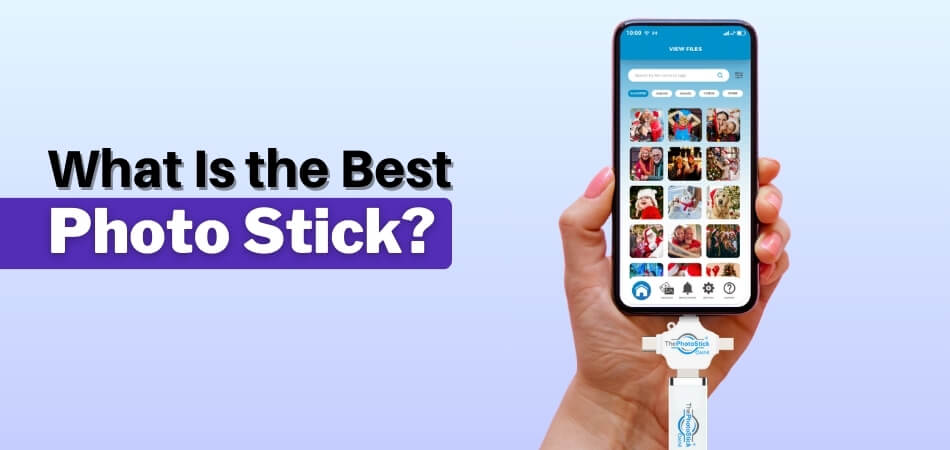
The best photo stick is one that combines automatic photo detection, wide device compatibility, sufficient storage capacity, fast transfer speeds, and simple plug-and-play functionality. It should work smoothly across iPhone, Android, Windows, and Mac without requiring technical expertise or complicated setup.
However, the “best” option ultimately depends on how much content you have, which devices you use, and whether you prefer simplicity, flexibility, or maximum storage.
What Makes a Photo Stick the “Best”?
Not every device labeled as a photo stick delivers the same experience. Some are little more than standard USB drives with a new name. Others are designed specifically to simplify backups and eliminate manual file management.
Here’s what separates a basic storage device from a truly reliable photo stick.
1. Storage Capacity That Matches Your Reality
Many buyers underestimate how quickly storage fills up. A few years of photos, social media downloads, and 4K videos can easily exceed 100GB.
Common capacity options include:
- 64GB – Suitable for light users with mostly photos
- 128GB – Ideal for average smartphone users
- 256GB – Better for frequent video recording
- 512GB or 1TB – Best for large libraries or long-term archiving
If you regularly record high-resolution videos or store years of family memories, choosing a higher-capacity option upfront can prevent the need for multiple upgrades later.
2. Automatic Photo Detection and Duplicate Removal
A traditional USB flash drive requires manual drag-and-drop transfers. That works, but it’s time-consuming and easy to mismanage.
A high-quality photo stick is designed to:
- Automatically scan your device for photos and videos
- Identify and skip duplicates
- Save files in organized folders
This feature alone can dramatically reduce the time required to back up thousands of files. For non-technical users, automation isn’t just convenient, it’s essential. If you’ve read any ThePhotostick Omni review, you’ll notice that ease of use and duplicate filtering are often highlighted as key strengths, which is exactly what most everyday users prioritize.
3. Multi-device Compatibility
The best photo stick should not lock you into one ecosystem. Look for support across:
- iPhone (Lightning or USB-C, depending on model)
- Android devices with USB-C and OTG support
- Windows PCs
- Mac computers
Some modern multi-connector models, such as ThePhotoStick Omni, are designed specifically to move files between phones and computers without extra adapters. This type of versatility makes them especially practical for households using different devices.
4. Transfer Speed That Saves Time
Backing up thousands of photos can take minutes or hours, depending on the USB standard.
- USB 2.0 works but may feel slow with large video files.
- USB 3.0 or higher significantly reduces transfer time.
If you plan to back up large media libraries, faster transfer speeds can make a noticeable difference in your overall experience.
5. File Format Compatibility
Compatibility issues often come down to file systems. Most smartphones and cross-platform setups work best with:
- exFAT – Supports large files and works across Mac and Windows
- FAT32 – Widely compatible but limited to 4GB per file
Devices formatted in NTFS may not function properly on iPhones without additional software. Choosing a photo stick that is already optimized for cross-device use eliminates unnecessary frustration.
Choosing Based on Your Needs
Instead of asking, “What is the best photo stick overall?” it may be more helpful to ask, “What is the best photo stick for me?”
- Simple backups: Prioritize automatic detection and duplicate removal.
- Multi-device use: Choose a multi-connector design.
- 4K-heavy video: Select 256GB+ capacity.
- No subscriptions: Focus on capacity and durability.
A well-designed photo stick should remove complexity, not add to it. It should give you control over your memories without locking you into recurring payments or complicated cloud ecosystems.
The best photo stick isn’t necessarily the most expensive one; it’s the one that aligns with your storage habits, device ecosystem, and comfort level with technology. Look for automation, compatibility, and sufficient capacity first. Everything else is secondary.
Why Are So Many People Looking for a Photo Backup Solution Today?
The demand for photo sticks isn’t random. It comes from everyday problems people face as cameras improve, files grow larger, and storage becomes harder to manage across multiple devices.

“Storage Almost Full” Warnings
Modern phones capture high-resolution photos and 4K video by default. Even 128GB can feel small when you record long videos, save social media clips, and keep years of memories on one device.
Fear of Losing Precious Memories
Phones get lost, damaged, or stolen. Laptops crash. Accounts can be locked. Accidental deletions happen more often than people admit. For many users, the emotional value of family photos makes backup feel urgent, not optional.
Subscription Fatigue and Rising Cloud Costs
Cloud storage is convenient, but it usually means monthly payments, internet dependence, and long-term costs that add up over time. For people who don’t want another recurring bill, a one-time backup device feels more predictable.
Privacy and Control Concerns
Some users simply prefer keeping personal photos offline. A physical backup solution gives more control over where files live and who can access them, without relying on third-party servers.
Photos Are Scattered Everywhere
Many people have photos spread across old phones, messaging apps, SD cards, and computers. The bigger the collection gets, the harder it becomes to organize and protect. That’s why “all-in-one” backup options are increasingly appealing.
People Want Backup to Be Simple
Most users aren’t looking for a technical project. They want a straightforward way to back up photos without sorting folders, dealing with cables, or learning new software, just a reliable method that works when they need it.
What Makes Them Different From Regular USB Drives?
At first glance, a photo stick may look like a standard USB flash drive. Both are small, portable, and plug into your device. However, the difference lies in how they function and who they’re designed for. A regular USB drive is a general storage tool. A photo stick is typically built specifically for backing up photos and videos quickly and automatically.
Here’s a deeper look at what sets them apart.
Automated Backup Software
The most significant difference is automation. A traditional USB drive requires you to:
- Open file folders manually
- Locate your photos and videos
- Drag and drop files
- Keep track of what has already been backed up
A photo stick, on the other hand, often includes built-in backup software that can:
- Scan your device automatically
- Detect common photo and video file types (JPG, PNG, HEIC, MP4, MOV, etc.)
- Save only new files
- Skip duplicates
- Organize content into structured folders
This automation reduces human error and makes the backup process faster, especially for users who are not comfortable navigating file systems. For many people, the ability to click one button and let the device do the rest is what makes a photo stick appealing.
From an SEO and feature snippet standpoint, this is the core differentiator:
A photo stick automates media backup, while a regular USB drive requires manual file management.
Designed Specifically for Photos and Videos
Regular USB drives are general-purpose storage devices. They don’t distinguish between document files, system files, media files, or software programs. Everything is treated the same.
Photo sticks are typically optimized for:
- Image and video file detection
- Media-focused organization
- Easier browsing of saved content
This focus on media makes them more beginner-friendly. Instead of digging through folders filled with mixed file types, users can often find their backups neatly categorized by device or date.
For everyday users who primarily want to protect personal memories rather than manage complex data structures, this targeted design makes a noticeable difference.
Multi-Connector Convenience
Most standard flash drives come with a single USB-A connector. While that works well for many laptops and desktops, it doesn’t directly support smartphones without adapters.
Modern photo sticks often include multiple connectors, such as:
- USB-A (for traditional computers)
- USB-C (for newer laptops and Android devices)
- Lightning connectors (for many iPhones)
This multi-connector design allows users to move files between devices more easily. Instead of transferring photos to a computer first and then copying them elsewhere, users can often back up directly from phone to a photo stick.
That added convenience appeals to people who want to transfer files between devices without relying on cloud uploads or intermediary systems.
Simplified User Experience
A regular USB drive assumes you understand folder hierarchies, file paths, and manual organization. That’s fine for tech-savvy users, but it can feel overwhelming for others.
Photo sticks are typically built with simplicity in mind:
- Minimal setup steps
- Clear on-screen instructions
- Straightforward backup processes
- Reduced need for technical knowledge
Instead of navigating complex directory trees, users can back up media with just a few guided steps. This lowers the barrier to entry and makes the device more accessible to a broader audience.
Duplicate Management and Incremental Backups
Another practical distinction is how updates are handled.
With a regular USB drive, it’s easy to accidentally:
- Copy the same files multiple times
- Overwrite folders
- Lose track of what has already been saved
Many photo sticks are designed to detect previously backed-up files and only transfer new content. This incremental backup approach saves storage space and reduces clutter over time.
Are Photo Sticks Compatible With iPhone, Android, Windows, and Mac?
Compatibility is one of the most important factors when choosing the best photo stick. A device might offer excellent storage and automation features, but if it doesn’t work smoothly across your devices, it quickly becomes inconvenient.
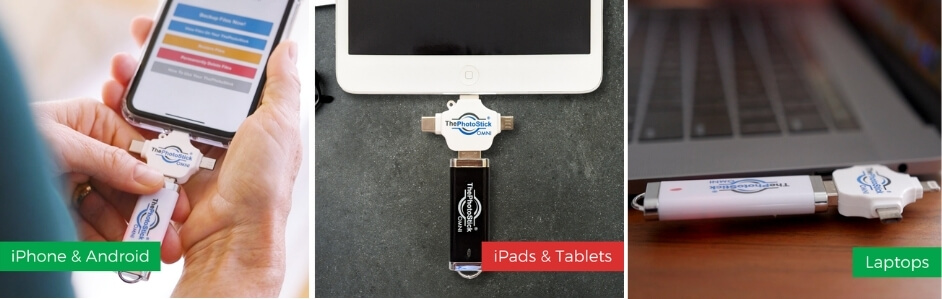
In most cases, modern photo sticks are designed to support iPhone, Android, Windows, and Mac. However, compatibility depends on connector type, file format, and device settings.
Here’s what you need to know before buying.
iPhone Compatibility
iPhone users often have the most questions about external storage.
Modern iPhones use either:
- Lightning ports (older models)
- USB-C ports (newer models)
To connect a USB stick to an iPhone successfully, you typically need:
- A compatible connector (Lightning or USB-C)
- A supported file system (exFAT is usually preferred)
- An iOS version that allows external storage access
Many photo sticks built for iOS devices include either a direct Lightning connector or dual connectors (Lightning + USB-A/USB-C). Some may also use companion apps to help manage backups and file browsing.
Important iPhone Considerations:
- iOS supports external drives through the Files app.
- exFAT is recommended for transferring large videos.
- NTFS drives may not work properly without third-party apps.
If the drive is formatted correctly and matches your port type, iPhone backup via Photo Stick is generally straightforward.
Android Compatibility
Most modern Android devices support USB-C with OTG (On-The-Go) functionality. OTG allows your phone to recognize external storage devices directly.
If your Android phone supports OTG, you can transfer files from phone without computer by plugging in a compatible photo stick.
What to Check for Android:
- USB-C port (or micro-USB on older models)
- OTG support enabled in settings
- Proper file system format (exFAT or FAT32)
Android devices are typically flexible with file formats, but exFAT is ideal for large video transfers. The main advantage here is convenience. Users can back up photos directly from their phone to a photo stick without needing a laptop as an intermediary.
Windows Compatibility
Most photo sticks are plug-and-play on:
- Windows 10
- Windows 11
No additional drivers are usually required. Once connected, the device appears as a removable drive.
Windows systems commonly support:
- NTFS
- exFAT
- FAT32
However, if you plan to use the photo stick across multiple devices (especially Mac and iPhone), exFAT is generally the safest choice.
Mac Compatibility
Mac computers also support photo sticks seamlessly when formatted correctly.
macOS supports:
- exFAT
- FAT32
- APFS (Mac-specific, but not ideal for cross-device use)
If you want cross-platform compatibility between Mac and Windows, exFAT remains the most practical format.
In most cases, photo sticks designed for media backup work without requiring additional software installation on macOS.
File Format Matters More Than Most People Think
Even if a photo stick physically connects to your device, it may not function properly if formatted incorrectly.
For maximum compatibility across:
- iPhone
- Android
- Windows
- Mac
exFAT is generally the best universal format. It supports large files (over 4GB), works across major operating systems, and avoids many common compatibility issues.
Universal Photo Sticks vs Single-Platform Drives
Some entry-level USB drives only support computers and require adapters for smartphones. In contrast, modern multi-device photo sticks often include:
- USB-A for traditional computers
- USB-C for newer laptops and Android
- Lightning connectors for iPhone
This multi-connector design reduces friction and eliminates the need for separate adapters. If you regularly switch between phone and computer, choosing a universal model simplifies the entire backup process.
Photo Stick vs Cloud Storage: Which One Gives You More Control?
When deciding what the best photo stick is, many users compare it with cloud storage. The real difference comes down to control: a photo stick gives you offline ownership, while the cloud prioritizes convenience and remote accessibility.
| Feature | Photo Stick | Cloud Storage |
| Internet required | No | Yes |
| Monthly fees | No | Yes |
| Remote access | Only with the stick | Anywhere with a login |
| Privacy control | High (offline) | Depends on the provider |
| Long-term cost | One-time purchase | Ongoing subscription |
Control and Ownership
With a photo stick, you physically own your backup. There are no account logins, no renewal reminders, and no dependence on internet connectivity. If you can connect USB stick to iPhone or plug it into your computer, you can access your files immediately.
Cloud storage, while convenient, stores your data on external servers. Access depends on your account status, internet connection, and provider policies.
Privacy Considerations
Offline storage reduces exposure to account-based breaches and third-party access risks. While reputable cloud providers use strong security measures, your data is still managed through external systems. For users who prefer full physical control, a photo stick offers a more direct solution.
Cost Over Time
Cloud subscriptions may seem affordable on a monthly basis, but over several years, recurring payments can exceed the cost of a high-capacity photo stick. A one-time purchase eliminates ongoing fees and keeps budgeting predictable.
A Practical Approach: Hybrid Backup
Many users ultimately choose a hybrid strategy, using cloud storage for automatic syncing and sharing, while keeping a photo stick as a separate offline backup for long-term protection.
Quick decision rule: Choose a photo stick if you want ownership, offline access, and no recurring fees. Choose cloud storage if you prioritize remote access and seamless syncing across multiple devices.
Common Mistakes to Avoid When Choosing a Photo Stick
Selecting the wrong photo stick can waste money and put your memories at risk. Understanding common buying mistakes helps you make a smarter decision. Let’s break down what to avoid before purchasing.
Buying Too Little Storage
Many users underestimate how quickly photos and videos accumulate. High-resolution images and 4K videos consume large amounts of space. Choosing a small capacity may seem economical initially, but upgrading later often costs more in the long run.
Ignoring Device Compatibility
Not every photo stick works with every device. Always confirm connector types such as USB-A, USB-C, or Lightning. Also, verify file system support to ensure smooth performance across iPhone, Android, Windows, and Mac devices without additional formatting.
Choosing NTFS for iPhone Use
NTFS is primarily designed for Windows systems and may not function properly on iOS devices. For cross-platform reliability, exFAT is usually the safest choice. It supports large files and works efficiently between smartphones and computers.
Falling for Unrealistic Marketing Claims
Some products advertise automatic backup or duplicate removal without delivering reliable results. Review specifications carefully and look for transparent feature descriptions. A genuine photo stick should clearly state its compatibility, storage capacity, and backup capabilities.
Overlooking Transfer Speeds
Backup speed matters, especially for large video libraries. USB 2.0 can feel slow when transferring thousands of files. USB 3.0 or higher significantly improves efficiency and reduces waiting time during full device backups.
In the end, avoiding these common mistakes ensures you choose a photo stick that matches your storage needs, device ecosystem, and long-term backup goals. Making an informed decision today protects your digital memories tomorrow.
Frequently Asked Questions
Choosing the right photo stick often raises practical questions about safety, durability, performance, and real-world use. Below are clear, direct answers to common user queries that help simplify your decision and improve long-term backup confidence.
How Long Does a Photo Stick Last?
Most quality photo sticks last several years with normal use. Lifespan depends on build quality, storage type, and handling. Keeping the device protected from moisture, drops, and extreme heat can extend its usability significantly.
Can a Photo Stick Store Videos as Well as Photos?
Yes, photo sticks can store both photos and videos. However, storage size matters. High-resolution videos consume more space than images, so choosing a larger capacity ensures smoother long-term media backup.
Do Photo Sticks Require Wifi to Work?
No, photo sticks do not require WiFi. They function through direct physical connection to your device. This offline capability makes them reliable in areas without internet access or during travel.
Can I Use One Photo Stick for Multiple Devices?
Yes, many modern photo sticks support multiple devices, especially those with dual or multi-connectors. As long as the file system is compatible, you can transfer files across supported phones and computers.
Are Photo Sticks Safe From Viruses?
Photo sticks themselves are generally safe, but transferring files from infected computers may carry risks. Using updated antivirus software and safely ejecting the device helps maintain data security.
Do Photo Sticks Organize Files Automatically?
Some models include built-in software that detects and organizes media files into folders. Others function like standard drives and require manual organization. Always review features before purchasing.
Can I Edit Photos Directly From a Photo Stick?
You can view and sometimes edit files directly, but performance may vary depending on device speed. For smoother editing, transferring files to your computer first is usually recommended.
Conclusion
Understanding what is the best photo stick comes down to your storage needs, device compatibility, and preference for offline control. A reliable photo stick offers automation, flexibility, and long-term value without recurring costs.
When chosen carefully, it becomes a simple way to protect your digital memories. Take time to compare features, capacity, and compatibility so you can invest confidently in a solution that keeps your photos safe for years.